Mark the Next Episode Watched
Quickly mark the next episode watched by double-tapping any show card or using the schedule prompt.
Last updated February 7, 2026
WatchThis lets you quickly track your progress without opening every show's details page. The fastest way is to simply double-tap the show card.
You can mark the next available episode as watched from any list, search result, or your dashboard:
- Find the TV show card.
- Double-tap (or double-click) anywhere on the card.
- A green checkmark will appear over the poster, confirming the episode (e.g., "S1E1: Pilot") is marked as watched.
This automatically:
- Marks the next unwatched episode as "watched".
- Updates your show status (e.g., from "Planning" to "Watching").
- Syncs with your collaborators if enabled.
If you use the Weekly Schedule, WatchThis also provides a dedicated prompt on your dashboard:
You’ll see an upcoming card in your activity feed on days when:
- A show is scheduled for today, and
- You haven’t already watched an episode of that show today
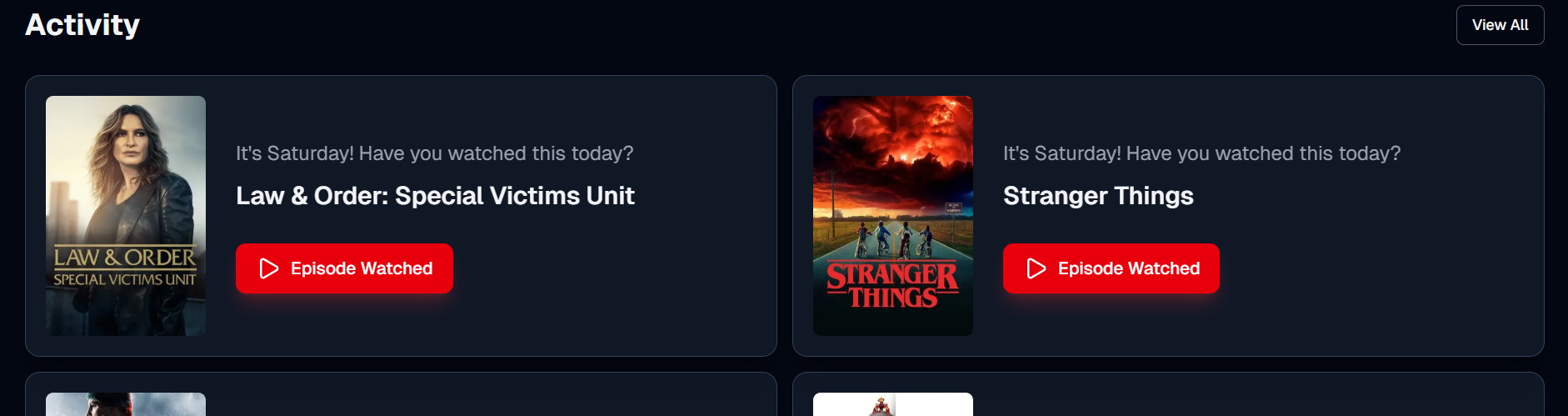
To use it:
- Find the scheduled show card in your activity feed.
- Click the Episode Watched button.
If double-tapping doesn't seem to work or the button says you're caught up, it usually means:
- No new episodes: You’ve watched all available episodes.
- Not aired yet: The next episode hasn't been released.
In these cases, you can check the show’s full episode list manually.
Read: Track TV Episodes.